
Instagram is one of the most powerful social media platforms in the world, with over two billion monthly active users. Whether you are a content creator, a business, or simply someone who loves sharing moments, knowing the Instagram character limit for every field is essential for crafting effective posts and a polished profile.
Writing a caption that gets cut off mid-sentence, or a bio that will not save because it is too long, can be frustrating and unprofessional. In this complete 2026 guide, you will learn the exact character limits for Instagram captions, bios, comments, usernames, hashtags, and more, along with practical tips to make the most of every character.
What Is the Instagram Character Limit?
An Instagram character limit is the maximum number of characters, including letters, numbers, spaces, punctuation, and emojis, that you are allowed to enter in a specific field on the platform. Instagram enforces these limits to maintain a consistent user experience and to optimize content display across all devices.
Understanding these limits helps you plan your content strategy, avoid abrupt cut-offs, and ensure your message is communicated clearly and completely. Let us break down the character limits for each section of Instagram one by one.
Instagram Caption Character Limit
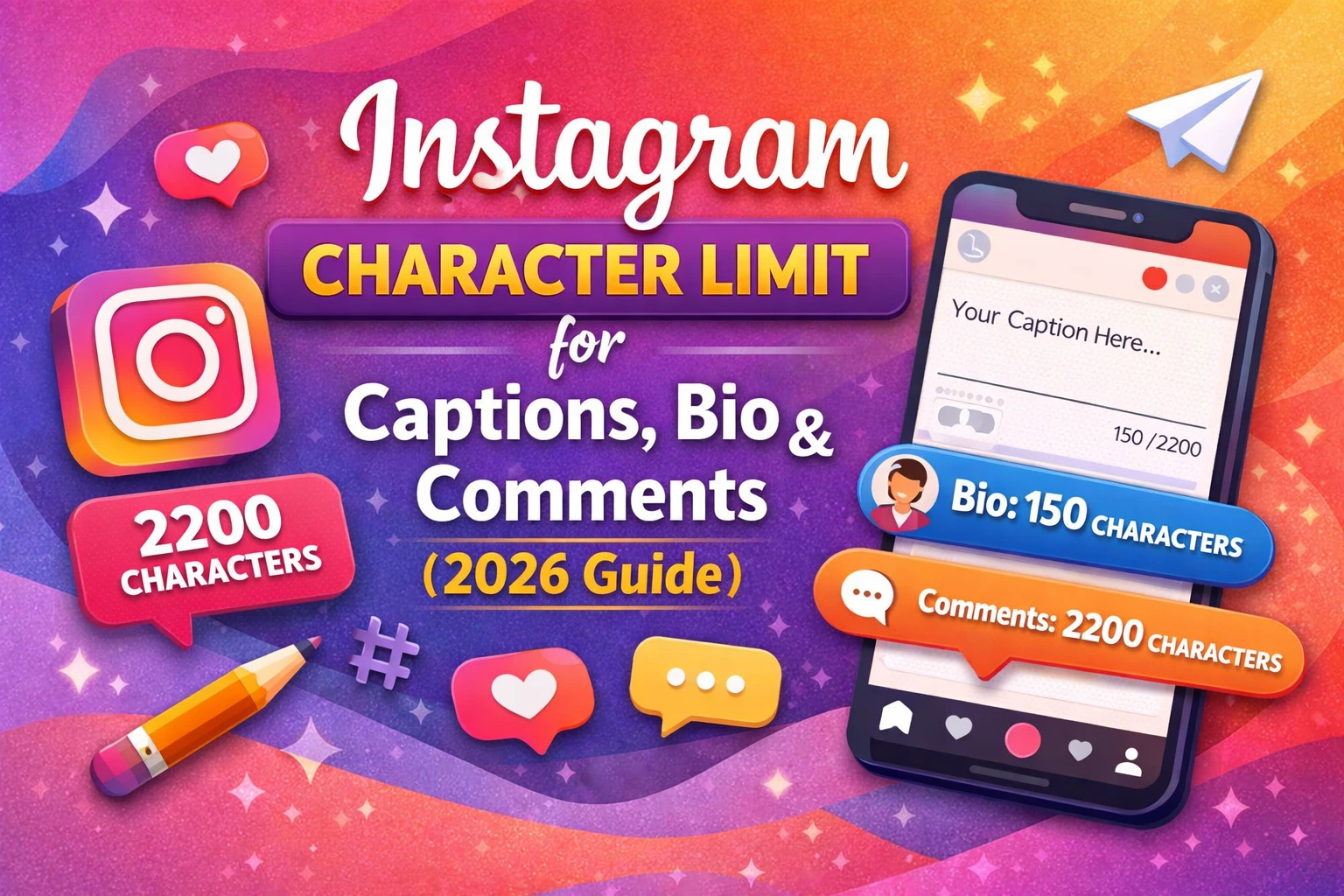
The Instagram caption character limit is 2,200 characters. This applies to feed posts, including photos and carousels. While 2,200 characters gives you plenty of room to tell a story, add context, and include hashtags, it is important to note that Instagram only shows the first two to three lines of your caption before truncating it with a “more” prompt.
What This Means for Your Posts
Because only the first few lines are visible without tapping “more,” you should put your most important message, hook, or call to action right at the beginning of your caption. Use the remaining space for storytelling, additional context, hashtags, and tags.
Hashtags in Captions
Instagram allows up to 30 hashtags per caption. Each hashtag counts toward your 2,200-character total. While you are technically allowed 30, research and platform guidance suggest that using between 3 and 10 well-chosen, relevant hashtags tends to perform better than stuffing 30 generic ones.
Caption Best Practices
- Place your most engaging line within the first 125 characters so it appears before the cut-off.
- Use line breaks to improve readability.
- Include a call to action such as “Save this post” or “Tag a friend.”
- Use relevant hashtags at the end of your caption or in the first comment.
Instagram Bio Character Limit
The Instagram bio character limit is 150 characters. This small space on your profile is incredibly valuable because it is often the first thing a new visitor reads when they land on your page. It needs to communicate who you are, what you do, and why someone should follow you, all within 150 characters.
What to Include in Your Bio
- A clear description of yourself or your brand.
- A unique value proposition or niche.
- A call to action such as “Shop now” or “DM for collabs.”
- Relevant emojis to save space and add personality.
- A link prompt directing visitors to your link in bio.
Pro Tips for Your 150-Character Bio
Use vertical formatting by placing each piece of information on its own line. This makes the bio easier to read and visually appealing. Emojis are counted as two characters each on Instagram, so use them wisely. Avoid unnecessary filler words and get straight to the point.
Instagram Comment Character Limit
The Instagram comment character limit is 2,200 characters, the same as captions. This gives you ample space to leave thoughtful, detailed responses or engage meaningfully with content. However, most users keep comments brief.
Character Limits on Comment Replies
Comment replies also follow the same 2,200-character limit. Instagram does not publicly disclose a separate limit for replies, but they adhere to the general comment policy.
Hashtags in Comments
You can include hashtags in comments, and they are clickable and functional. Many creators post their full list of hashtags in the first comment rather than in the caption itself, keeping the caption clean while still benefiting from hashtag reach. This is a widely used and accepted Instagram strategy.
Instagram Username Character Limit
The Instagram username character limit is 30 characters. Your username, also called your handle and preceded by the @ symbol, must be unique across the platform. It can include letters, numbers, periods, and underscores, but cannot contain spaces or special characters like @, #, or $.
Rules for Instagram Usernames
- Minimum of 1 character, maximum of 30 characters.
- Only letters (A-Z), numbers (0-9), periods (.), and underscores (_) are allowed.
- Usernames are not case-sensitive.
- Cannot begin or end with a period.
- Cannot have consecutive periods.
Choosing a clean, memorable username is important for discoverability and brand recognition. If your preferred username is taken, try adding a period, underscore, or a relevant keyword to differentiate it.
Instagram Name Character Limit
The Instagram name character limit is 30 characters. Unlike your username, your display name (the name shown in bold on your profile) can include spaces and most special characters. This field appears in search results, so it is a valuable space for searchability.
Using Your Name Field for SEO
Many creators and businesses strategically use the name field to include keywords. For example, instead of just writing “Sarah,” a food blogger might write “Sarah | Food & Travel” to improve the chances of appearing in relevant searches. This is one of the best-kept Instagram growth tips that many users overlook.
Instagram Direct Message Character Limit
The Instagram Direct Message (DM) character limit is 1,000 characters per message. If you need to send a longer message, you can send it in multiple parts. DMs support text, emojis, links, photos, and videos, making them a versatile communication tool for both personal and business use.
Business Use of Instagram DMs
For businesses using Instagram for customer service or sales, the 1,000-character limit per message is generally sufficient for most conversations. If you need to share detailed information, consider sending it in multiple messages or directing the user to a link where they can find more comprehensive content.
Instagram Hashtag Character Limit
Each individual hashtag on Instagram can be up to 30 characters long, not counting the # symbol itself. Hashtags cannot contain spaces or special characters. You can include a maximum of 30 hashtags in a single post, whether in the caption or the first comment.
How Many Hashtags Should You Use?
Instagram itself has recommended using between 3 and 5 focused hashtags rather than the maximum of 30. Studies and creator experiences suggest that quality and relevance beat quantity when it comes to hashtag performance. Mix broad hashtags with niche-specific ones for the best results.
Instagram Story Character Limit
Instagram Stories do not have a strict character limit in the traditional sense because text is added as an overlay on images or videos. However, there is a practical visual limit: text that is too long will not fit properly on the screen and will overlap with other elements. Most users find that keeping story text under 200 characters keeps it readable and visually clean.
Story Poll, Quiz, and Question Stickers
- Poll sticker options: Up to 26 characters per option.
- Quiz answer options: Up to 26 characters per answer.
- Question sticker prompt: Up to 100 characters.
- Countdown sticker title: Up to 46 characters.
These interactive stickers are powerful engagement tools, and knowing their limits helps you craft clear, compelling prompts that encourage responses.
Instagram Reel Description Character Limit
The Instagram Reel description character limit is 2,200 characters, the same as a regular feed post caption. Reels have become one of the most powerful content formats on the platform, with unmatched organic reach potential. A well-written Reel description that includes relevant keywords and hashtags can significantly boost discoverability.
Tips for Writing Reel Descriptions
- Include your primary keyword naturally in the first line.
- Use 3 to 10 targeted hashtags at the end of the description.
- Write a compelling first line that hooks viewers and encourages them to watch the full Reel.
- Add a clear call to action such as “Follow for more” or “Share with someone who needs this.”
Quick Reference Table: All Instagram Character Limits (2026)
| Instagram Field | Character Limit |
| Caption (Feed Post) | 2,200 characters |
| Bio | 150 characters |
| Comment | 2,200 characters |
| Username (Handle) | 30 characters |
| Display Name | 30 characters |
| Direct Message | 1,000 characters per message |
| Hashtag (per tag) | 30 characters |
| Max Hashtags per Post | 30 hashtags |
| Reel Description | 2,200 characters |
| Story Text (recommended) | Under 200 characters |
| Poll Option (Story) | 26 characters |
| Quiz Answer (Story) | 26 characters |
| Question Sticker Prompt | 100 characters |
| Countdown Sticker Title | 46 characters |
Tips to Write Better Captions Within Character Limits
1. Start With a Hook
Your first line is the most valuable real estate in your caption. Use a question, a bold statement, or a surprising fact to stop the scroll and encourage users to tap “more” to read the rest.
2. Tell a Story
Instagram users respond well to authentic, personal stories. Use the 2,200-character limit to share a narrative that connects with your audience on an emotional level. Stories build trust and loyalty over time.
3. Use White Space
Dense blocks of text are hard to read on a small screen. Break your caption into short paragraphs or use line breaks to improve readability. You can create line breaks by pressing Enter and adding a period or emoji before the next line.
4. Include a Call to Action
Every caption should have a purpose. Whether you want users to visit your link in bio, save the post, tag a friend, or leave a comment, tell them exactly what to do. A clear call to action significantly increases engagement.
5. Optimize the First 125 Characters
The preview text in Instagram feeds shows approximately 125 characters before the “more” link appears. Make sure the first 125 characters are compelling enough to make users want to read the full caption.
Why Character Limits Matter for Instagram SEO
Instagram has evolved into a powerful search engine. Users now search for content, creators, and products directly within the app using keywords. This means that the text you use in your captions, bio, name field, and Reel descriptions directly affects your discoverability.
Keywords in Your Bio
Instagram’s search algorithm indexes the text in your name and bio fields. Including relevant keywords in these fields, within the 30 and 150-character limits respectively, helps your profile appear in search results when users look for content in your niche.
Keywords in Captions and Descriptions
Using natural, relevant keywords in your captions and Reel descriptions helps Instagram understand what your content is about and show it to the right audience. Do not keyword-stuff; instead, write naturally and let relevant terms appear organically within your content.
Alt Text for Images
Instagram allows you to add alt text to your images, which has a 100-character limit. This text helps visually impaired users understand your content and also signals to the algorithm what your image depicts. Always write descriptive, keyword-rich alt text for every post.
Final Words
Understanding and working within Instagram’s character limits is not just a technical necessity; it is a smart content strategy. Whether you are crafting a compelling bio that fits within 150 characters, writing a powerful 2,200-character caption, or designing an interactive Story with perfectly worded poll options, every character counts.
In 2026, Instagram continues to reward creators and brands that produce clear, engaging, and well-optimized content. By knowing exactly how much space you have in each field and using it wisely, you give yourself a significant advantage over competitors who ignore these details.
Use the quick reference table in this guide to plan your content, apply the writing tips to craft more effective captions, and leverage the character limits strategically to maximize your reach and engagement. Your Instagram presence is a reflection of your brand, and every word you write within those character limits is an opportunity to make a lasting impression.
Frequently Asked Questions (FAQs)
Q1. What is the Instagram caption character limit?
The Instagram caption character limit is 2,200 characters. This includes spaces, punctuation, emojis, and hashtags. Only the first two to three lines are visible in the feed before the “more” prompt appears, so make your opening lines count.
Q2. How many characters can an Instagram bio have?
An Instagram bio can have a maximum of 150 characters. This includes spaces and emojis. Note that emojis count as two characters each. Use this limited space to clearly describe who you are and what you offer, with a strong call to action.
Q3. What is the character limit for Instagram comments?
The character limit for Instagram comments is 2,200 characters, the same as the caption limit. This is more than enough for most interactions, but keep in mind that most users prefer shorter, more conversational comments.
Q4. How long can an Instagram username be?
An Instagram username can be a maximum of 30 characters. It can only contain letters, numbers, periods, and underscores. Usernames are unique to each account and are not case-sensitive.
Q5. Can I use all 30 hashtags in my Instagram caption?
Yes, you can use up to 30 hashtags in your Instagram caption or comment. However, Instagram and many social media experts recommend using between 3 and 10 highly relevant hashtags rather than the maximum 30, as fewer and more focused hashtags tend to perform better.
Q6. Does Instagram have a character limit for Reels descriptions?
Yes, the character limit for Instagram Reels descriptions is 2,200 characters, the same as feed post captions. Use this space to include relevant keywords, a compelling hook, targeted hashtags, and a clear call to action to maximize the reach of your Reels.
Q7. What happens if I exceed the Instagram character limit?
Instagram will not allow you to save or post content that exceeds the character limit for a given field. The platform will typically show you a character count or an error message, prompting you to shorten your text before you can proceed.
Q8. Do emojis count as characters on Instagram?
Yes, emojis count as characters on Instagram. Most emojis count as two characters each due to their Unicode encoding. This is especially important to keep in mind when writing your bio, which has a strict 150-character limit.
Q9. What is the character limit for Instagram DMs?
The character limit for each Instagram Direct Message is 1,000 characters. If you need to send a longer message, you can simply send multiple messages in the same conversation thread.
Q10. Is there a character limit for Instagram Story text?
Instagram Stories do not have a fixed character limit for text overlays, but there is a practical visual limit. Text that is too long will overflow and become difficult to read. It is recommended to keep Story text under 200 characters to ensure readability on all screen sizes. Interactive stickers like polls and quizzes have their own specific character limits, ranging from 26 to 100 characters depending on the sticker type.

Hi, I’m Emily Carter, a content specialist and the creator behind AdvancedCharacterCounter.com.
With over 5 years of experience in digital content and SEO writing, I help creators, bloggers, and marketers write clear, concise, and optimized content. I focus on simplifying character limits, improving readability, and making content more effective across platforms.
On this website, I share practical guides on character limits, writing techniques, and content optimization tools to help you create better content faster.
My goal is simple: help you write smarter within any character limit.
📌 Expertise:
- Character Count & Text Optimization
- SEO Writing & Content Strategy
- Social Media Content Limits
- Blogging & Copywriting
📩 For collaborations or queries, feel free to reach out through the Contact page.